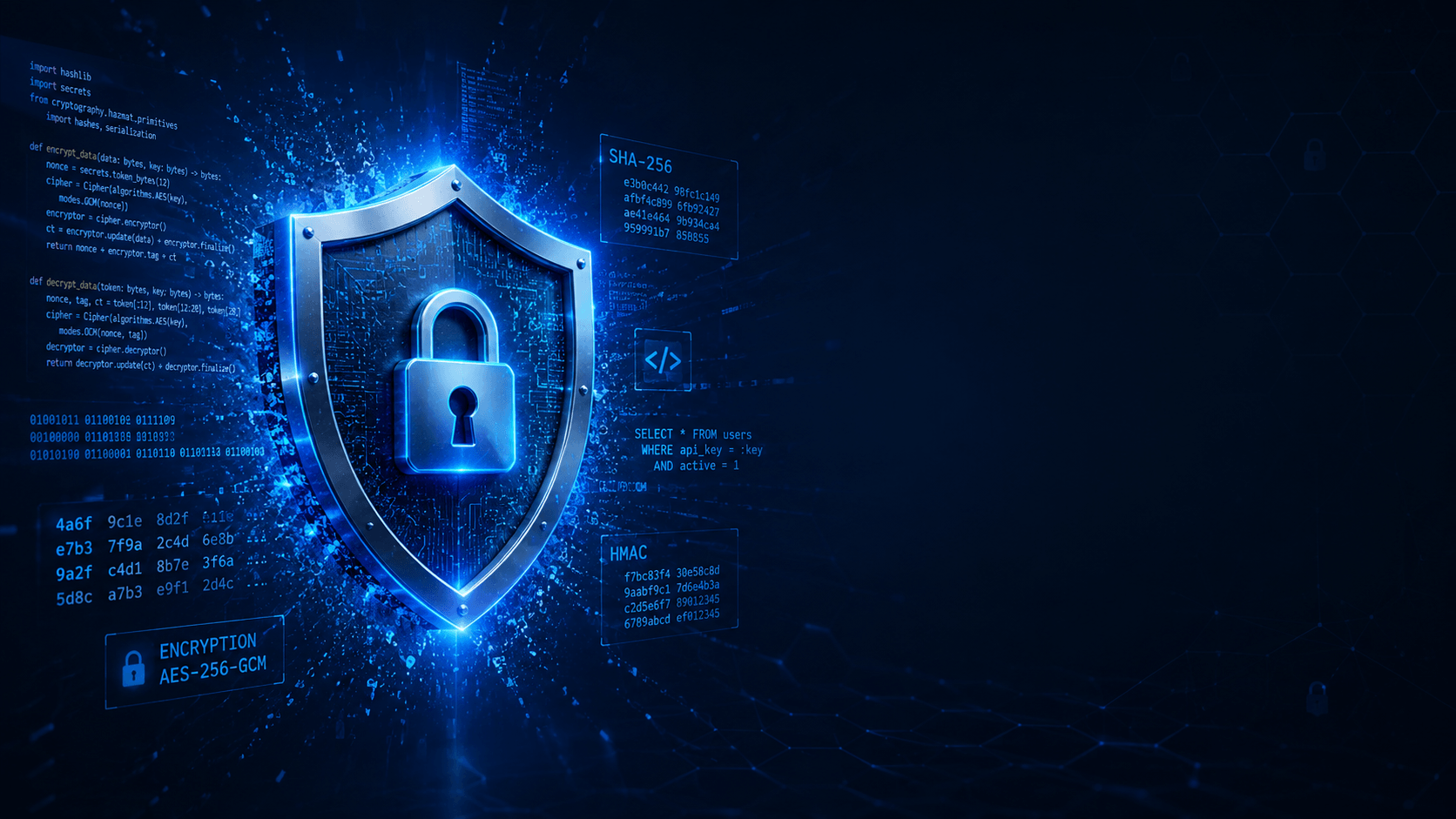
Building Nexus Vault — A Secure Desktop Password Manager with Python and Claude
Secure. Store. Protect.
How I planned, built, secured, and shipped a fully encrypted offline password manager from scratch — using AI pair programming.
The Problem
I don't fully trust cloud-based password managers. When a company stores your passwords — even encrypted — you're trusting their infrastructure, their employees, and their security practices. One breach and your entire digital life is exposed.
So I built my own. Completely offline. Cryptography, I can read and audit myself. No cloud. No telemetry. No backdoor.
This is the full story: the planning, the engineering decisions, the security architecture, the UI redesign, and every mistake along the way.
What Python Desktop App Framework Should You Use?
Before writing a single line of app code, the first decision was: which UI framework?
Here's an honest comparison of the real options in 2024:
Option 1 — Tkinter (built-in)
Python ships with Tkinter. Zero install required.
1import tkinter as tk
2
3root = tk.Tk()
4root.title("My App")
5tk.Label(root, text="Hello World").pack()
6root.mainloop()
Pros: Ships with Python, runs everywhere, no extra dependencies
Cons: Looks like it's from 2003. Widgets are ugly out of the box.
Option 2 — CustomTkinter ✅ (what we chose)
A modern wrapper around Tkinter that replaces every widget with a sleek, themed version.
1pip install customtkinter
2import customtkinter as ctk
3
4ctk.set_appearance_mode("dark")
5ctk.set_default_color_theme("blue")
6
7app = ctk.CTk()
8app.geometry("400x300")
9app.title("My App")
10
11ctk.CTkLabel(app, text="Hello World",
12             font=ctk.CTkFont(size=20, weight="bold")).pack(pady=20)
13
14ctk.CTkButton(app, text="Click Me",
15              fg_color="#3B82F6",
16              hover_color="#2563EB").pack()
17
18app.mainloop()
Pros: Pure Python, dark/light mode built-in, rounded corners, ships as a standalone .app, huge widget library
Cons: Not as powerful as PyQt6 for very complex UIs
Option 3 — PyQt6 / PySide6
The gold standard for serious cross-platform desktop apps. Uses Qt under the hood.
1pip install PyQt6
2from PyQt6.QtWidgets import QApplication, QMainWindow, QLabel
3from PyQt6.QtCore import Qt
4import sys
5
6app = QApplication(sys.argv)
7window = QMainWindow()
8window.setWindowTitle("My App")
9
10label = QLabel("Hello World", window)
11label.setAlignment(Qt.AlignmentFlag.AlignCenter)
12window.setCentralWidget(label)
13window.show()
14
15sys.exit(app.exec())
Pros: Extremely powerful, QSS stylesheets for theming, native look on each platform, professional
Cons: Large binary when packaged (~200MB+), Qt licensing can be complex, steeper learning curve
Option 4 — Flet (Flutter-based)
Write Python, ship Flutter. Works on macOS, Windows, Linux, iOS, Android, and web from the same codebase.
1pip install flet
2import flet as ft
3
4def main(page: ft.Page):
5    page.title = "My App"
6    page.add(
7        ft.Text("Hello World", size=30, weight=ft.FontWeight.BOLD),
8        ft.ElevatedButton("Click Me", on_click=lambda e: print("clicked"))
9    )
10
11ft.app(target=main)
Pros: Cross-platform including mobile, Material Design, modern
Cons: Not truly native Python UI, Flutter dependency, less mature ecosystem
Option 5 — Kivy
Open source, supports touch and mobile. Uses its own OpenGL-based renderer.
1pip install kivy
2from kivy.app import App
3from kivy.uix.button import Button
4
5class MyApp(App):
6    def build(self):
7        return Button(text="Hello World")
8
9MyApp().run()
Pros: Mobile support (iOS/Android), runs anywhere
Cons: Doesn't look native, complex packaging, not great for data-heavy apps
Planning with Claude
Before writing any code, I spent time building the architecture document with Claude. The output was a complete plan covering:
- Framework and package choices with reasoning
- Database schema
- Security model design
- Project folder structure
- UI wireframes in ASCII
- A 5-phase build roadmap
Having this document upfront meant no surprises. Every design decision was made before touching code.
The Security Architecture
This is the part I'm most proud of. The security model has one rule:
The master password is never stored — not even hashed.
Here's exactly how it works:
Master Password (typed by user)
│
▼
Argon2id KDF ◄── 32-byte random salt (stored in DB)
│ time_cost=3
│ memory_cost=65536 (64 MB)
│ parallelism=2
▼
256-bit Derived Key (lives in RAM only — never written to disk)
│
├──► AES-256-GCM encrypts every password field
├──► AES-256-GCM encrypts every note body
└──► zeroed from memory on lock or exit
What Nexus Vault Looks Like Today
- Dashboard — Security score (0–100, A–D grade), stat cards, recent items, quick actions
- Vault — Credential cards with favicons, ⭐ favourites, password strength bar, QR share
- Notes — Grid/list toggle, colour-coded cards, inline editor, auto-save, folder filters
- Settings — Theme switcher, auto-lock timeout, clipboard clear duration, change master password, backup/restore, export to JSON/CSV
- Keyboard shortcuts — ⌘F search · ⌘L lock · ⌘1/2/3 switch views · Esc clear
What I Learned
1. Design the security model before writing a single line of code.
Once you have data in the database, changing the crypto scheme means re-encrypting everything. Get it right upfront.
2. SQL can't search encrypted data.
Obvious in hindsight, but if you encrypt field values, you can't use WHERE body LIKE '%query%'. The solution is to decrypt all records and filter in Python — fine for personal data volumes.
3. PyInstaller + conda on macOS is not plug-and-play,.
The Tcl/Tk native libraries are stored in a non-standard location in conda environments. Plan an extra day for packaging.
4. AI pair programming genuinely changes the velocity.
Using Claude for architecture planning, debugging, packaging issues, and code review cut the development time significantly. The planning document alone saved days of backtracking.
Run It Yourself
1# Clone the repo
2git clone <your-repo>
3cd nexus-vault
4
5# Set up the environment
6conda create -n nexusvault python=3.11 -y
7conda activate nexusvault
8pip install -r requirements.txt
9
10# Run in dev mode
11python main.py
12
13# Build the .app
14pyinstaller build.spec --clean --noconfirm
15
16# Install
17cp -r dist/NexusVault.app /Applications/
18xattr -rd com.apple.quarantine /Applications/NexusVault.app
19open /Applications/NexusVault.app
plug-and-play
Nexus Vault — Secure. Store. Protect. 🛡
Built with Python · CustomTkinter · AES-256-GCM · Argon2id · Claude
Share this article
Found it helpful? Share it with your network.